
Understanding Your Gaming Needs
When embarking on the journey to build a low-cost gaming PC, the first step is to clearly define your gaming needs. Understanding the types of games you wish to play will greatly influence your choice of components and overall budget. Popular game genres such as first-person shooters, role-playing games, or strategy games may have varying requirements for system performance and capabilities.
Another critical factor to consider involves the resolution and frame rate at which you want to enjoy your games. Higher resolutions such as 1440p or 4K demand more powerful graphics cards and CPUs, whereas playing at 1080p might allow for a less expensive build while still delivering impressive results. Furthermore, frame rates, or how many frames display per second, significantly impact the smoothness of gameplay. Aiming for 60 frames per second or higher can provide a more immersive experience, particularly in fast-paced titles.
Budget allocation is also essential when identifying your gaming needs. Each component—whether it be the CPU, GPU, RAM, or storage—will vary in price based on performance capabilities. It’s crucial to balance your desires with budget constraints, ensuring that each element of the PC meets both current gameplay expectations and your financial limitations.
Another aspect worth mentioning is the concept of ‘future-proofing’ your gaming PC. This involves selecting components that not only meet your current needs but also have the capacity to handle upcoming games and advancements in technology. Investing slightly more initially in a robust graphics card or CPU can save you money in the long run, as it may delay the need for an upgrade as game requirements evolve. Therefore, taking the time to understand your gaming preferences and future potential is vital to creating a low-cost yet efficient gaming system.


Choosing the Right Components
When constructing a low-cost gaming PC, selecting the appropriate components is essential to achieving optimal performance without overspending. The primary components that require careful consideration include the CPU, GPU, motherboard, RAM, storage, and power supply. Each of these pieces plays a vital role in the overall gaming experience.
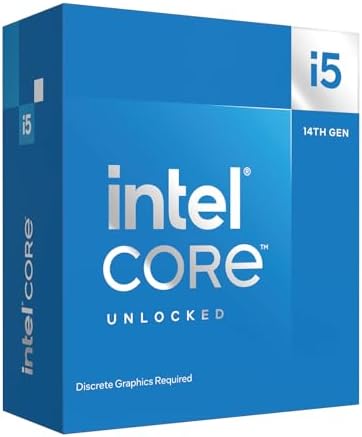
The CPU (Central Processing Unit) is often referred to as the brain of your computer. For budget-friendly gaming, consider models such as the AMD Ryzen 5 or the Intel Core i5 from previous generations. These CPUs provide an excellent balance of performance and cost, making them suitable for handling most contemporary games.




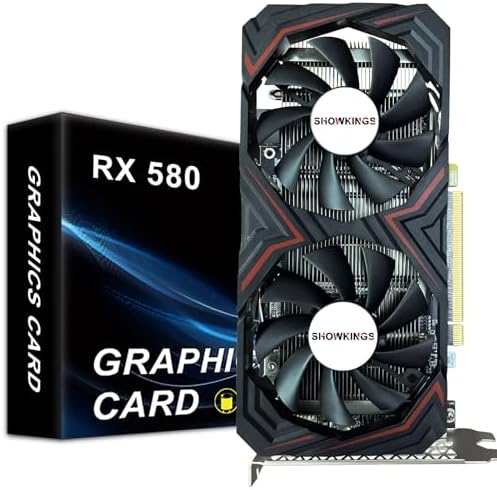
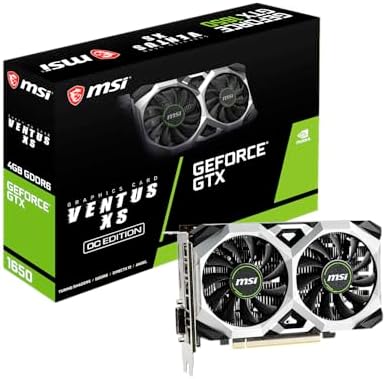
Next, the GPU (Graphics Processing Unit) significantly affects visual performance and frame rates. While high-end GPUs can be prohibitively expensive, options like the NVIDIA GeForce GTX 1660 or the AMD Radeon RX 580 offer good performance for budget gamers. Always check compatibility with your motherboard and ensure you have the appropriate power supply to support your GPU.



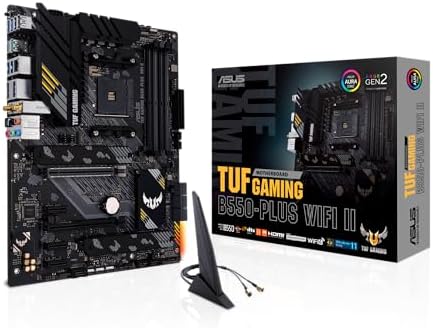
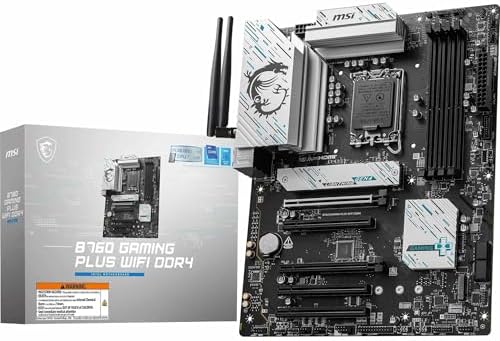
The motherboard is another crucial element, as it determines the compatibility of your CPU, RAM, and other components. Look for motherboards that support the latest technology while also being affordable. Selecting a mid-range ATX or Micro-ATX motherboard can provide a solid foundation for your gaming rig.




For RAM, 16GB is generally recommended for gaming, but 8GB may suffice for more casual gamers. Opt for dual-channel kits to enhance performance while remaining mindful of the budget. Storage solutions vary, but combining a small SSD with a larger HDD is a cost-effective way to achieve a balance of speed and capacity.


Finally, the power supply is critical for providing stable and reliable power to all components. Aim for a reputable brand with a minimum of 80 Plus certification, ensuring efficiency and safety. In seeking affordability, consider options where refurbished or used components are available, as they can significantly lower costs without sacrificing quality.


Assembling Your Gaming PC
Assembling a low-cost gaming PC is a rewarding and educational experience. To start, gather the essential tools required for the assembly: a Phillips screwdriver, anti-static wrist strap, and zip ties for cable management. The anti-static wrist strap is critical as it protects sensitive components from electrostatic discharge, which can damage them during handling.
Begin by preparing your workspace. Choose a clean, well-lit area, and lay out all your components: the case, motherboard, CPU, GPU, RAM, power supply, and storage drives. Make sure you also have the manuals on hand, as they can provide valuable information specific to each part. When handling these components, always hold them by the edges and avoid touching the contacts or pins.
Start the assembly process by installing the CPU into the socket on the motherboard, ensuring that the alignment notches match. Once the CPU is in place, apply thermal paste and attach the cooler to prevent overheating. Next, install the RAM sticks in the appropriate memory slots, which are usually color-coded for optimal performance.
Afterward, secure the motherboard into the case using the provided standoffs. It is vital to ensure that all screws are tight but not over-tightened, as this can damage the board. Once the motherboard is secured, proceed to install the power supply, making sure to route the necessary cables to the motherboard and components efficiently.
Next, attach the GPU into the designated PCIe slot, ensuring it is fully seated. Finally, connect all required power cables to the motherboard, GPU, and storage drives, paying attention to cable management. Proper organization of cables is crucial for maintaining airflow and creating an aesthetically pleasing build. Remember to double-check all connections before closing the case to avoid common pitfalls that may arise during the assembly process.
With patience and attention to detail, you can successfully build a low-cost gaming PC that meets your gaming needs without compromising budget constraints.
Installing the Operating System and Optimizing Performance
After completing the hardware assembly of your low-cost gaming PC, the next crucial step is installing the operating system (OS). This step lays the foundation for your gaming experience, and the most commonly used OS for gaming is Microsoft Windows. To begin the installation, create a bootable USB drive containing the Windows installation files, which can be obtained from Microsoft’s official website. Insert the USB into your gaming PC, power it on, and access the BIOS to set the USB drive as the primary boot device. Follow the on-screen instructions to complete the installation process.
Once the OS is installed, it is imperative to install essential drivers. Graphics card drivers are particularly significant, as they directly influence gaming performance. Ensure you download the latest drivers from the graphics card manufacturer’s website, such as NVIDIA or AMD. After installing the drivers, you should check for any additional updates for your OS to ensure optimal functionality.
To enhance the gaming experience further, consider optimizing system settings. Adjust the graphics settings in games according to the capabilities of your hardware; this may involve lowering the resolution or turning down texture quality to improve frame rates. Managing background processes is also critical; closing unnecessary applications can free up system resources for gaming. For efficient system monitoring, tools like MSI Afterburner or HWMonitor can help track performance and temperature levels, making it easier to identify bottlenecks.
Regular maintenance is essential to keep your gaming PC running smoothly over time. Schedule updates for both your operating system and drivers to benefit from new features, security patches, and performance improvements. Furthermore, clean your PC’s interior periodically to prevent dust buildup that can cause overheating. In conclusion, being proactive about installation and optimization will ensure your gaming experience remains smooth and enjoyable in the long run. Moreover, addressing common troubleshooting issues, such as crashes or slow performance, can often be resolved by checking driver installations and system settings.